How to Turn On Subtitles in Your Language on Xbox
Learn how to check language options for games on Xbox Series X|S and Xbox One.
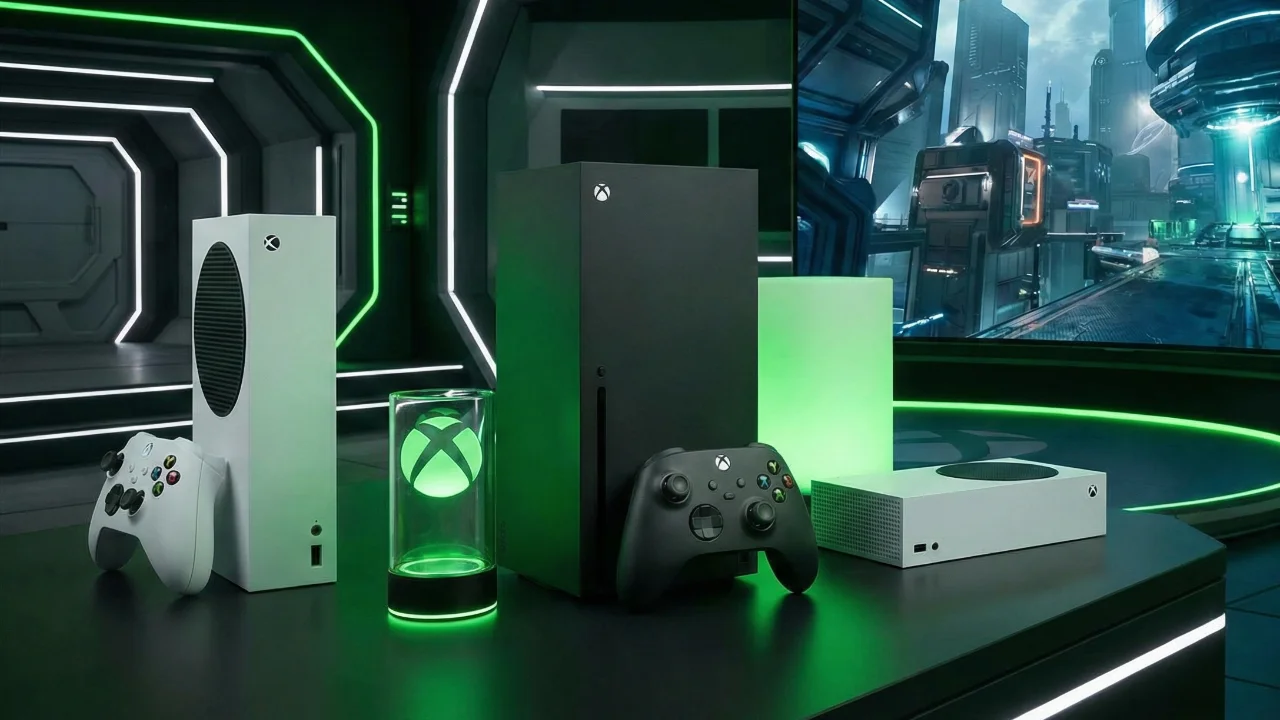
Turning on subtitles in your language on Xbox Series X|S and Xbox One depends on the system language, the in-game settings and the game’s language support. This guide covers all three in order and shows an alternative for games that don’t offer your language.
1. Set the Xbox system language
- Press the Xbox button on your controller to open the guide.
- Go to Profile & system → Settings → System → Language & location.
- Choose your language and confirm if the console asks to restart.
Games that take their language from the system will start in that language from now on.
2. Turn on Xbox subtitle settings
Under Settings → Accessibility → Closed captions you can turn on system-wide captions and customise their style (text size, colour, background). This applies to apps and games that support it.
3. Check the in-game language options
- Open the game’s Options / Settings menu.
- Find the Language, Audio or Subtitles section.
- Turn subtitles on and choose your language if it’s listed.
Where can I see a game’s language support?
The Supported languages table on the Microsoft Store product page shows interface, audio and subtitle support in separate columns. If “Subtitles” isn’t ticked for your language, the game has no subtitles in it.
| Column | Meaning |
|---|---|
| Interface | Menus and in-game text are localised |
| Audio | Voice-over is available |
| Subtitles | Dialogue is subtitled |
Do PC translation patches work on Xbox?
Generally not. PC patches work by changing game files, and there’s no access to game files on Xbox. The PC and Xbox versions of the same game are distributed as different packages, so a PC patch can’t be moved to the console.
An alternative for Xbox games that don’t support your language
Subvoce offers translation for Xbox games too, by reading the English subtitles on screen. You stream the console picture to your PC with the Xbox app on Windows; Subvoce reads the subtitles, translates them locally on your PC and sends the translation to the TV on the same network. The setup steps are in the Subvoce user guide.
Understand the subtitle. Keep playing.
Subvoce translates the English subtitles on your screen locally on your PC and shows the translation on your PC or your TV.
More articles
Guides
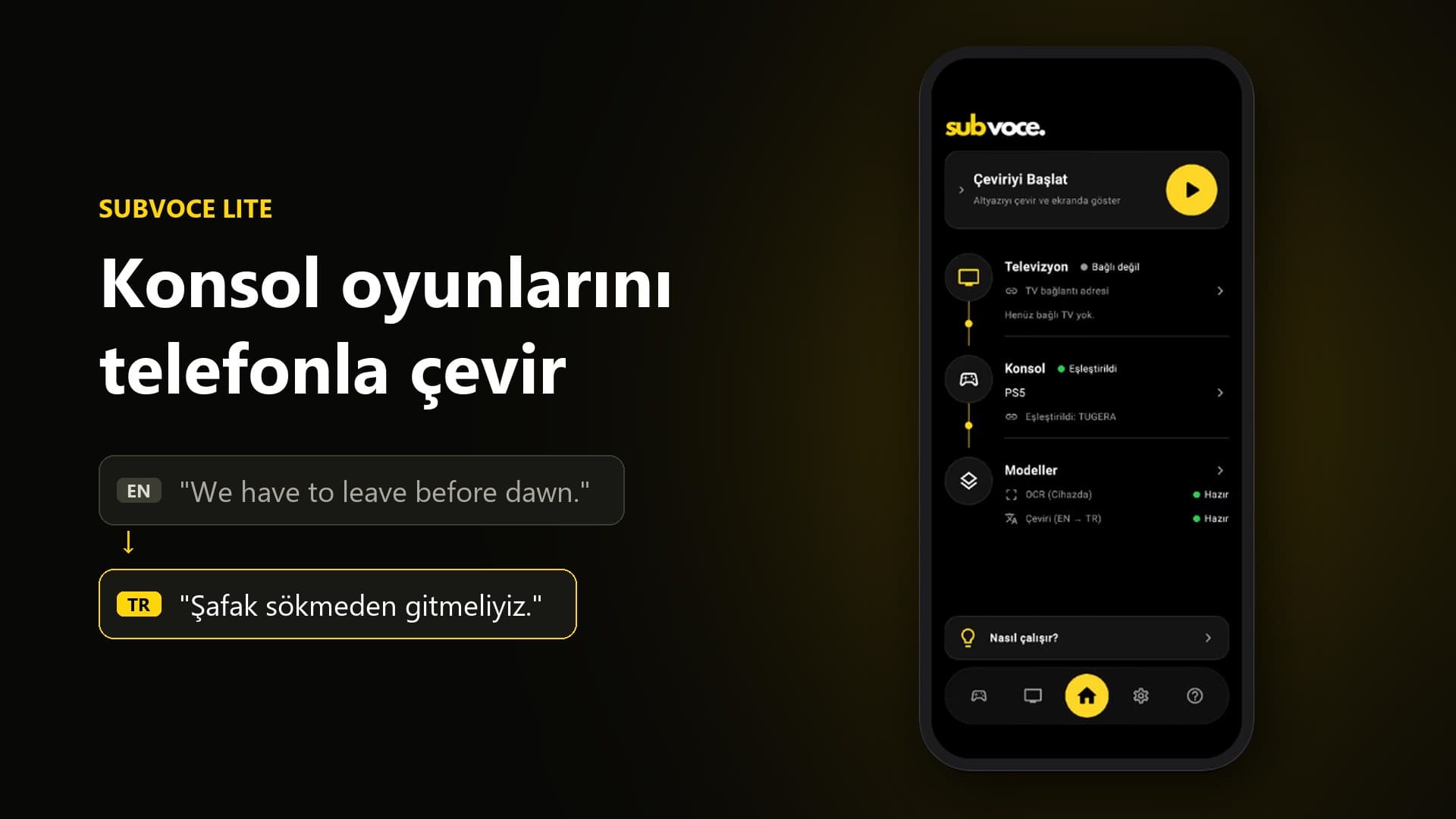
How to Translate Console Games with Your Phone
A step-by-step guide to translating PS5 game subtitles with your Android phone and showing them on your TV, no computer needed.
Guides
PS5 and Xbox Subtitle Language Guide
Learn how to check language options in PS5 and Xbox games, and what to do when your language isn’t supported.