PS5 and Xbox Subtitle Language Guide
Learn how to check language options in PS5 and Xbox games, and what to do when your language isn’t supported.
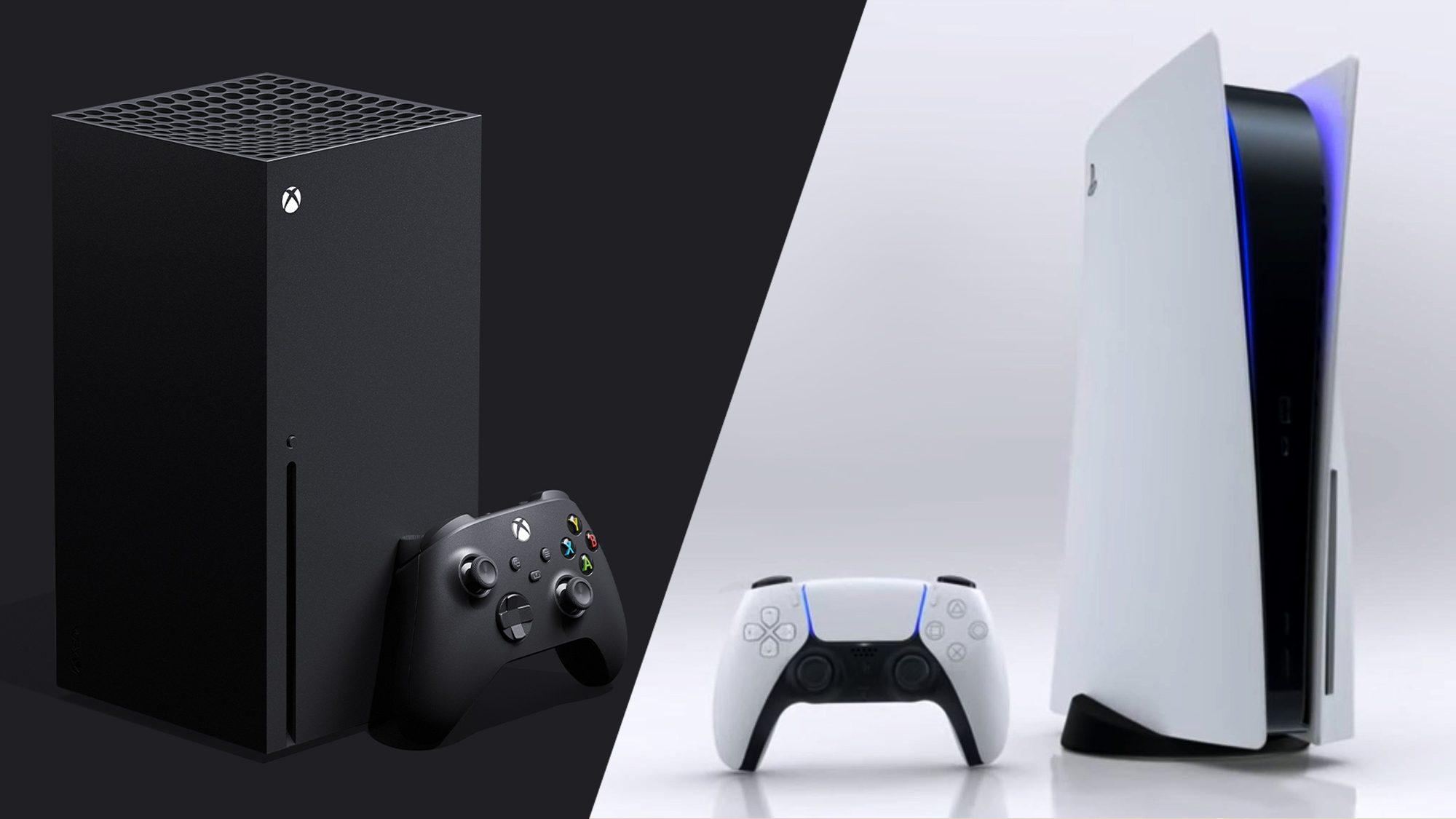
When you start a new game on PS5 or Xbox, the first question is often the same: are there subtitles in my language? Some games ship with a dozen or more languages, others only offer English and a handful of major ones. This guide shows how to check language settings on both consoles, step by step, and what you can do when a game doesn’t support your language.
Set your console’s system language first
Many games pick their language from the console’s system language on first launch, so start there:
- PS5: Settings → System → Language → System Language
- Xbox Series X|S / Xbox One: Settings → System → Language & location → Language
Close the game completely and reopen it after the change. If the game supports your language and reads it from the system, it will now start in that language.
Check the in-game language and subtitle settings
The system language isn’t always enough. Many games let you choose the language in their own menu. Usually you need to:
- Open Options / Settings from the game’s main menu.
- Look for a Language, Subtitles or Accessibility tab.
- Turn subtitles On and pick your language if it’s listed.
- Some games set text language and audio language separately; check both.
Check language support before you buy
The most reliable source is the official store page:
| Platform | Where to look | What to watch for |
|---|---|---|
| PS5 | PlayStation Store product page → language info | “Screen languages” covers subtitles and interface, “Audio” covers voice-over. |
| Xbox | Microsoft Store product page → Supported languages | Interface, Audio and Subtitles are ticked in separate columns. |
| Both | The publisher’s official support page | Regional editions can have different language lists. |
What if the game doesn’t support your language?
On PC, community translation patches are common, but consoles don’t allow game files to be changed, so those patches can’t be used on PS5 or Xbox. The most practical option is a tool that translates the English subtitles on screen in real time.
That’s exactly what Subvoce does: the console picture is streamed to your PC with PS Remote Play or the Xbox app, Subvoce reads the subtitle area you select, translates it on your PC with a local AI model, and sends the translation to the TV on the same network. No game files are touched, and no jailbreak or patch is needed.
- Translation happens entirely on your PC; subtitle text is never sent to a remote AI service.
- No graphics card needed: the translation models run on the CPU.
- Speaker names are detected and shown in a different colour.
Summary
Set the console language first, then check the in-game language and subtitle menu. Before buying, look at the language list on the store page. If the game doesn’t support your language at all, real-time screen translation is the most realistic alternative on console, since patches can’t be installed. See the Subvoce user guide for setup steps.
Understand the subtitle. Keep playing.
Subvoce translates the English subtitles on your screen locally on your PC and shows the translation on your PC or your TV.
More articles
Guides
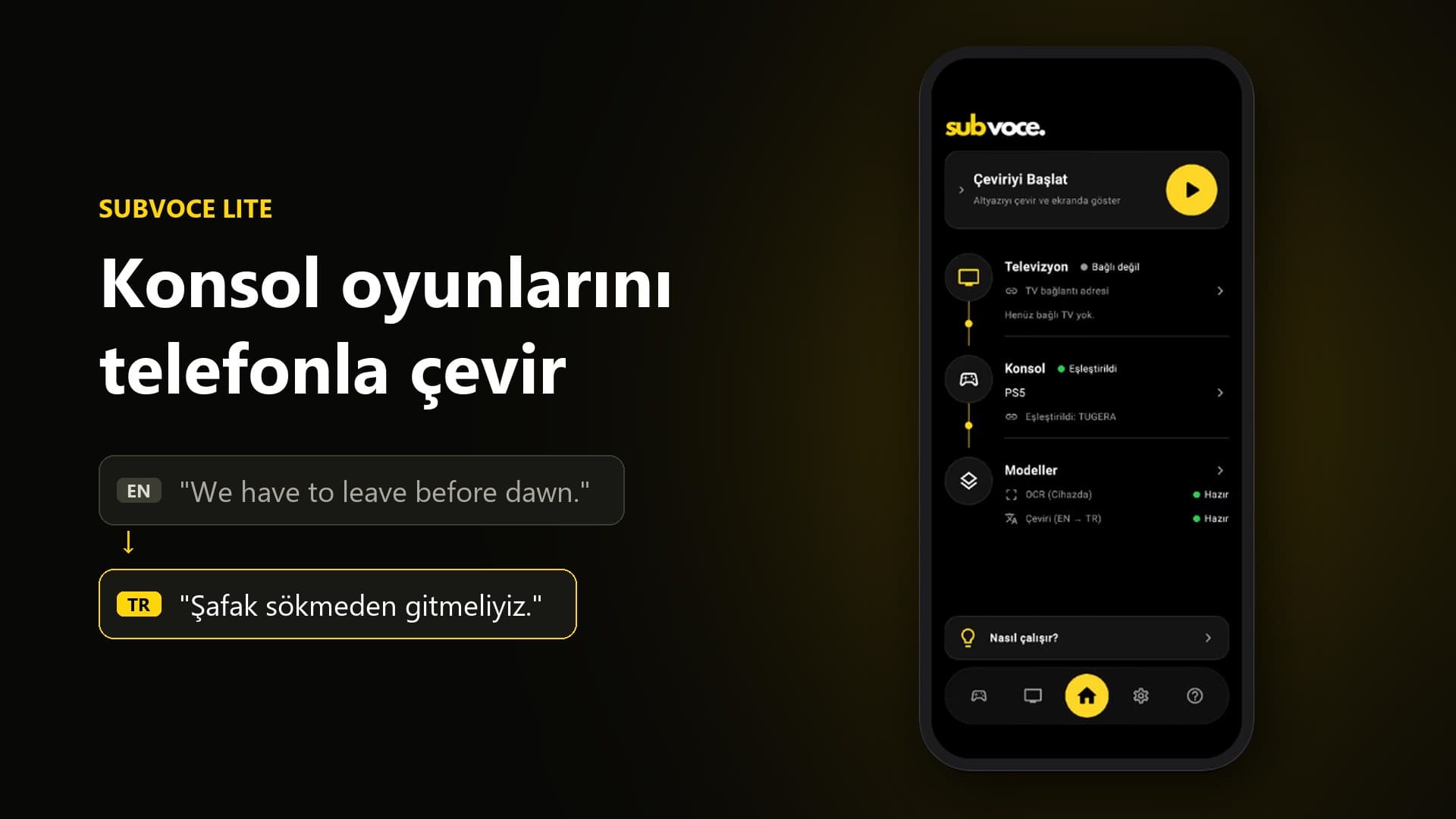
How to Translate Console Games with Your Phone
A step-by-step guide to translating PS5 game subtitles with your Android phone and showing them on your TV, no computer needed.

Game guides
GTA 6 Subtitles in Your Language: What Are Your Options?
How to check GTA 6’s language options and what translation alternatives exist on console.