How to Get Your PS5 Picture on a PC
Compare Remote Play and a capture card for viewing PS5 gameplay on your PC.
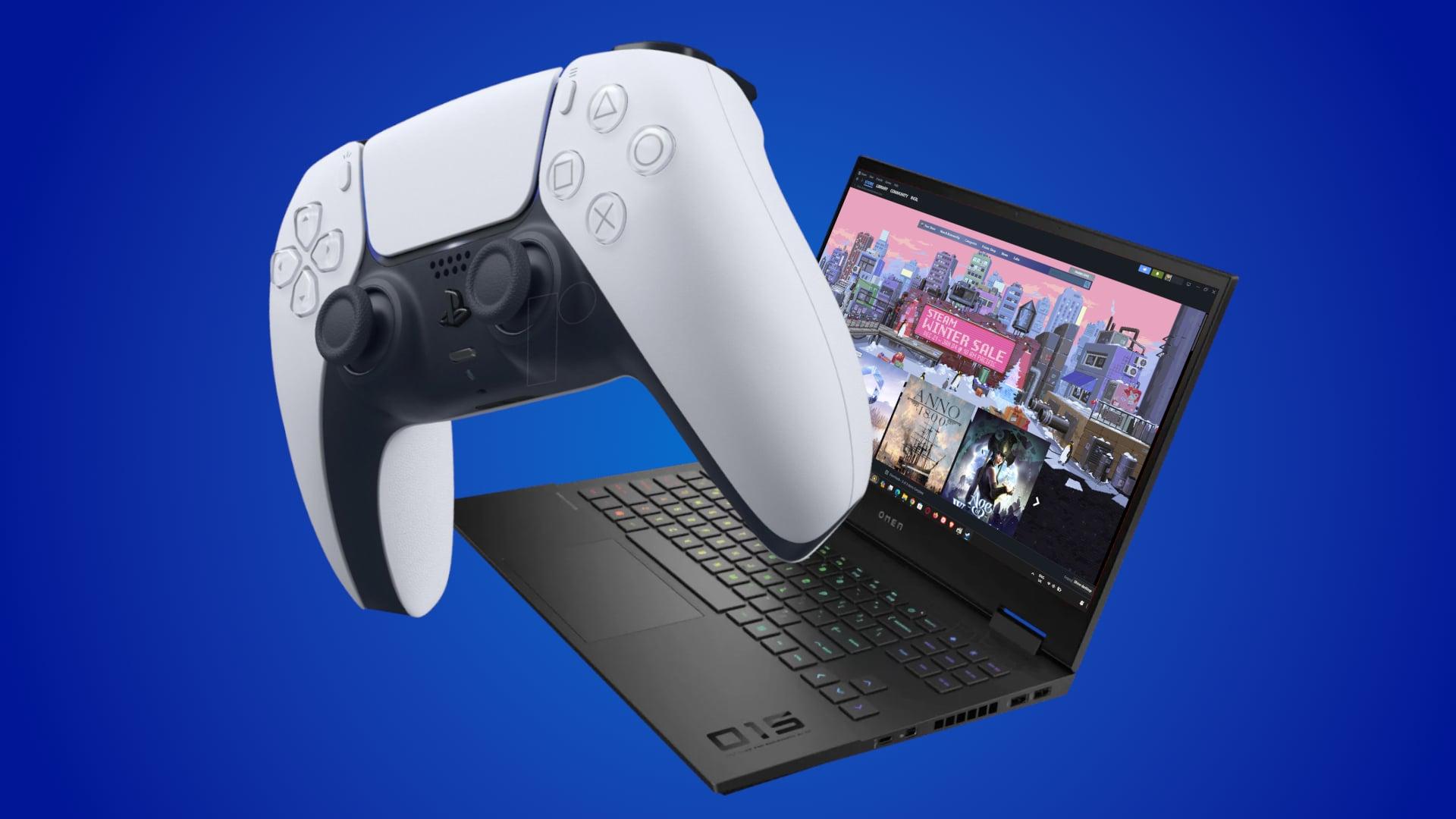
Getting your PS5 picture onto a PC is useful for streaming, recording, or using a tool that translates on-screen subtitles. There are two main ways to do it: PS Remote Play and a capture card. This guide compares both and walks through setting each one up.
Why plugging HDMI into your PC doesn’t work
HDMI ports on desktops and laptops are almost always outputs: they send a picture, they don’t receive one. Connecting the PS5 straight to that port won’t show anything. To get the picture onto a PC you need either network streaming (Remote Play) or hardware with an HDMI input (a capture card).
Method 1: PS Remote Play
PS Remote Play is Sony’s free app that streams the PS5 picture to a Windows PC over your home network.
- On PS5, go to Settings → System → Remote Play and turn on Enable Remote Play.
- To wake the console remotely, go to Settings → System → Power Saving → Features Available in Rest Mode and enable staying connected to the internet and turning on the PS5 from the network.
- Install the official PS Remote Play app on your PC and sign in with your PlayStation Network account.
- Select your PS5 in the app; the picture opens on your PC within seconds.
Method 2: Capture card
A capture card is hardware that takes the PS5’s HDMI output and passes it to the PC over USB or PCIe. With “passthrough”, the picture is usually sent to the TV at the same time.
- Plug the PS5’s HDMI cable into the card’s HDMI IN port.
- Connect the card’s HDMI OUT to your TV (passthrough).
- Connect the card to your PC over USB or PCIe and open the picture in the card’s software or a program like OBS.
- If there’s no picture, turn off Enable HDCP on PS5 under Settings → System → HDMI.
Remote Play or a capture card?
| PS Remote Play | Capture card | |
|---|---|---|
| Cost | Free | Extra hardware |
| Setup | Software and network settings | Cables and drivers |
| Picture quality | Depends on network speed, compressed | High and stable |
| Latency | Varies with the network | Low |
| Where you play | On the PC or the TV | On the TV (with passthrough) |
Which one suits subtitle translation?
Subvoce reads the picture from your PC screen, so it can work with either method. Subvoce’s console setup is designed around PS Remote Play: the subtitle in the Remote Play window is read, translated locally on your PC, and the translation is shown on your TV. Because it needs no extra hardware, Remote Play is the easiest start for most people. Also see how to change subtitle language on PS5.
Understand the subtitle. Keep playing.
Subvoce translates the English subtitles on your screen locally on your PC and shows the translation on your PC or your TV.
More articles
Guides
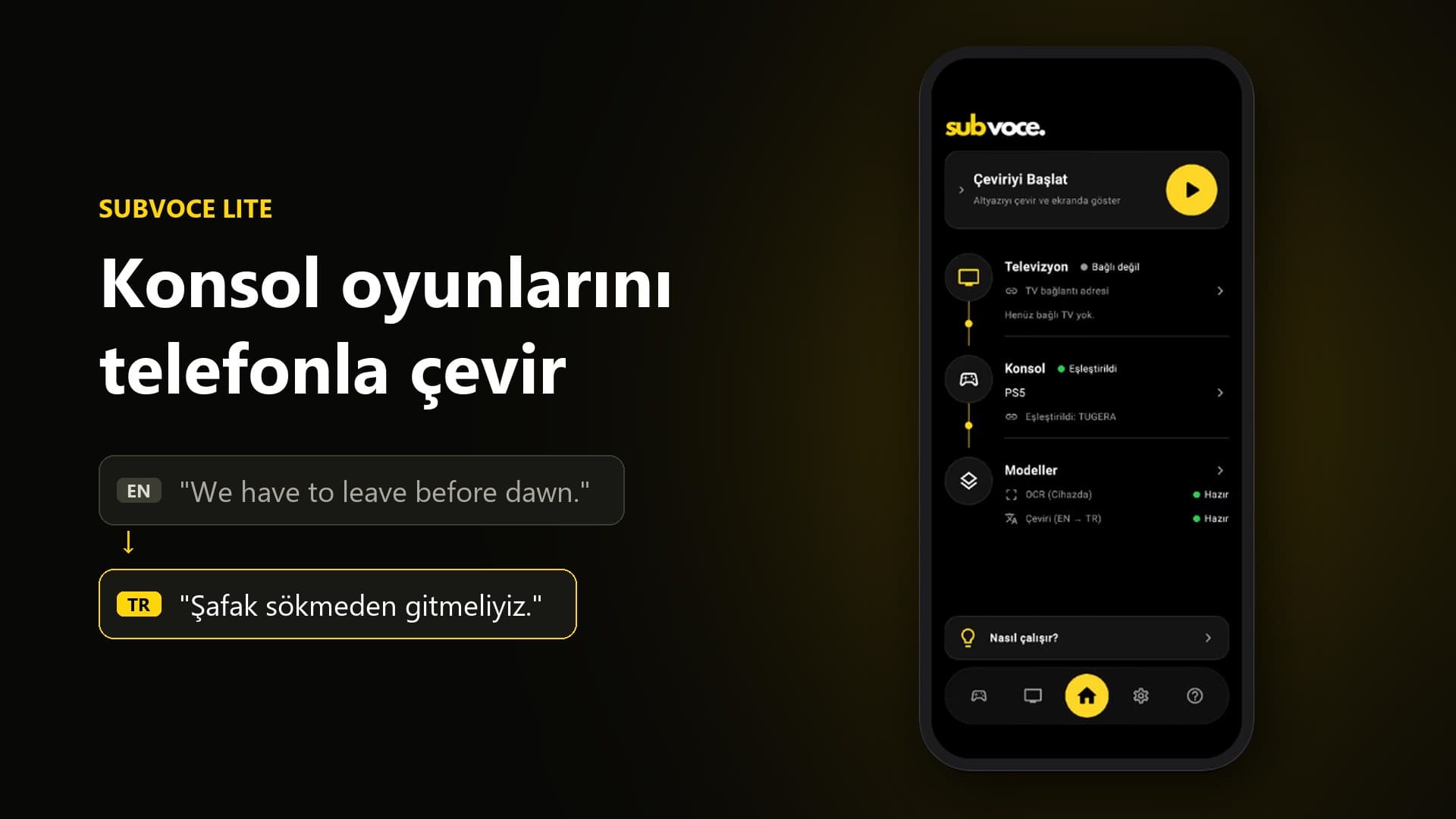
How to Translate Console Games with Your Phone
A step-by-step guide to translating PS5 game subtitles with your Android phone and showing them on your TV, no computer needed.
Guides
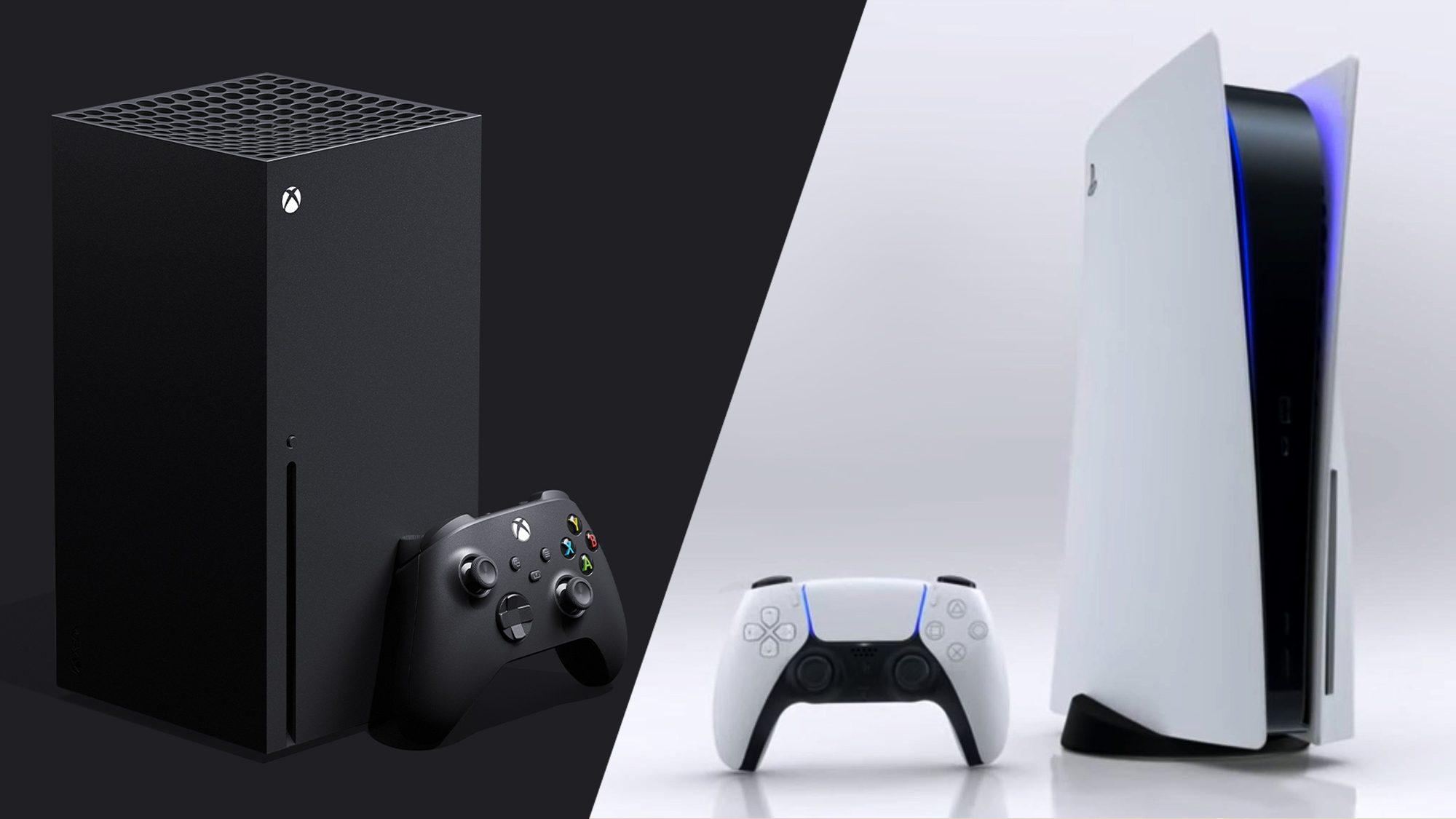
PS5 and Xbox Subtitle Language Guide
Learn how to check language options in PS5 and Xbox games, and what to do when your language isn’t supported.